Writeroom

From assignment link to the whole story.

Writeroom works alongside Google Classroom. Students write in a familiar editor; teachers see how each piece of writing came together and decide what, if anything, needs a conversation.

  1. Step 1: Make the assignment

    Create the assignment in Writeroom: a title, a due date, and any rules you want, such as locking at the due date. Each assignment can start blank, with your instructions, or from a document you attach.

    Copy its link and post it in your Google Classroom assignment, the way you share anything else. With the Writeroom Chrome extension you can also pick Writeroom for each student right in Classroom.
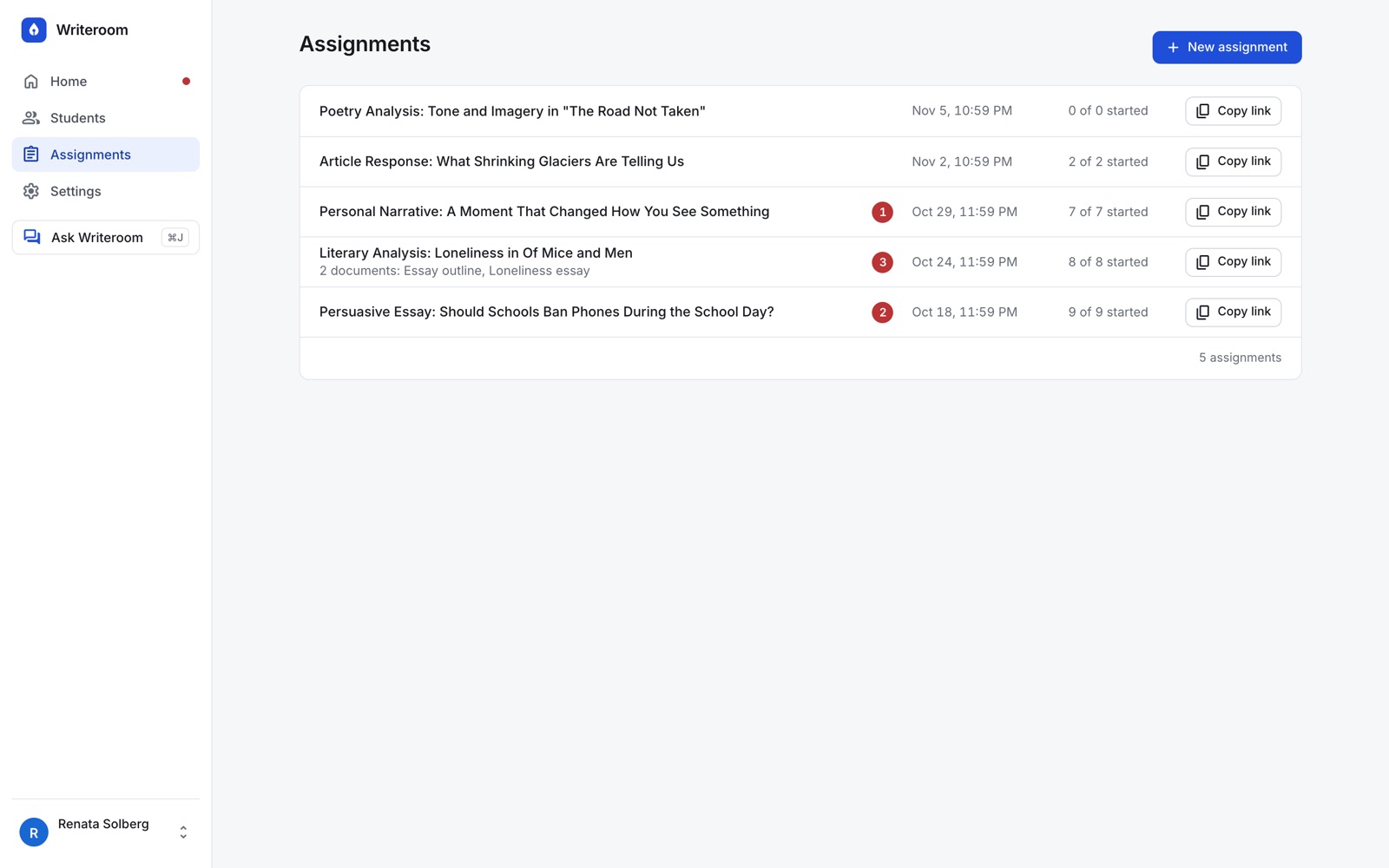
    The Assignments page in Writeroom: five demo assignments, each with its due date, how many students have started, and a Copy link button.
  2. Step 2: Students are told what is recorded

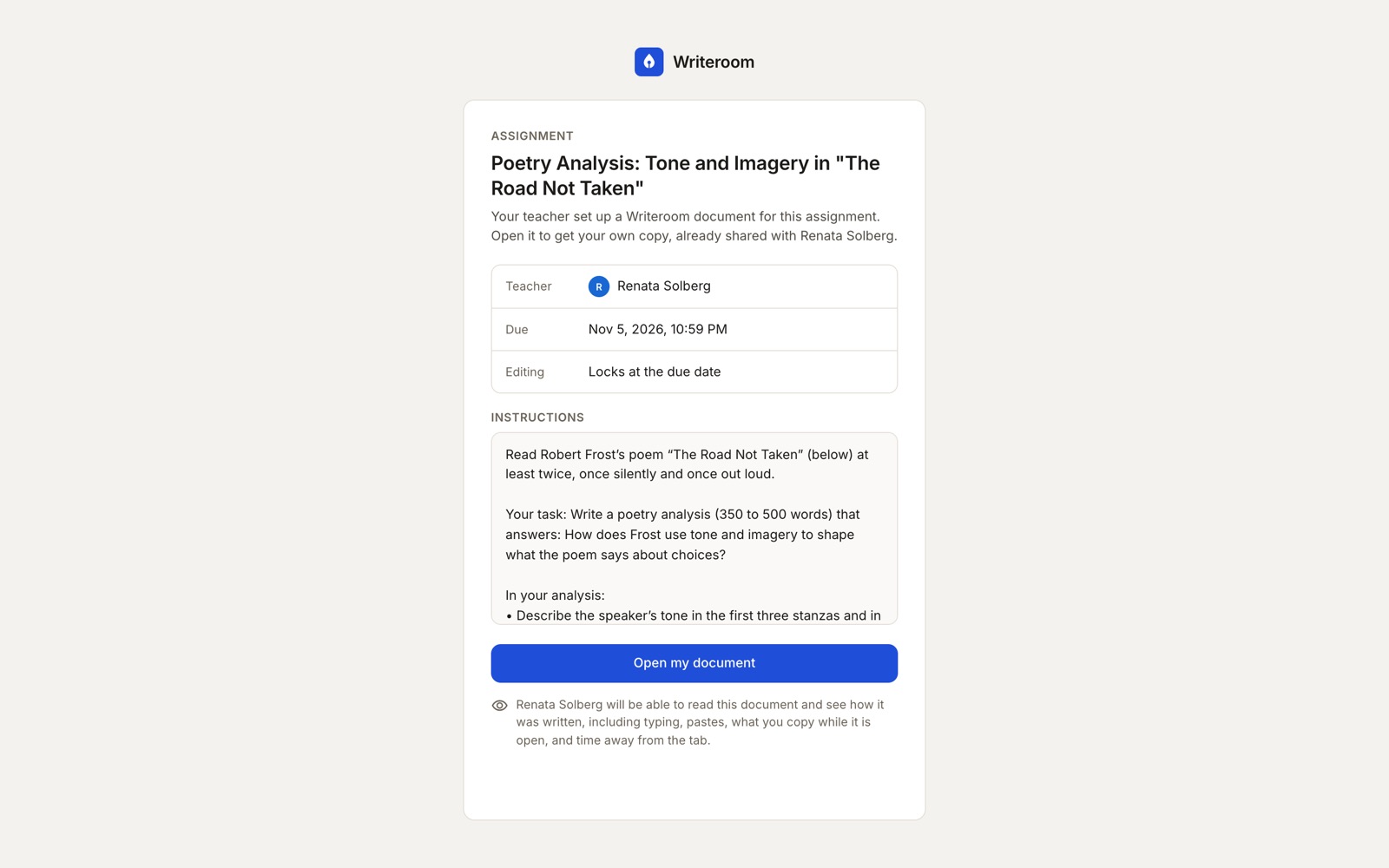
    When a student opens the link, Writeroom shows the assignment, who the teacher is, when it is due, and what the teacher will be able to see, before anything is recorded.

    The student then gets their own copy of the document, already shared with the teacher.

    The assignment page a student sees before writing: the teacher, the due date, the instructions, and a note saying the teacher will see how the document was written.
  3. Step 3: Students write in a real editor

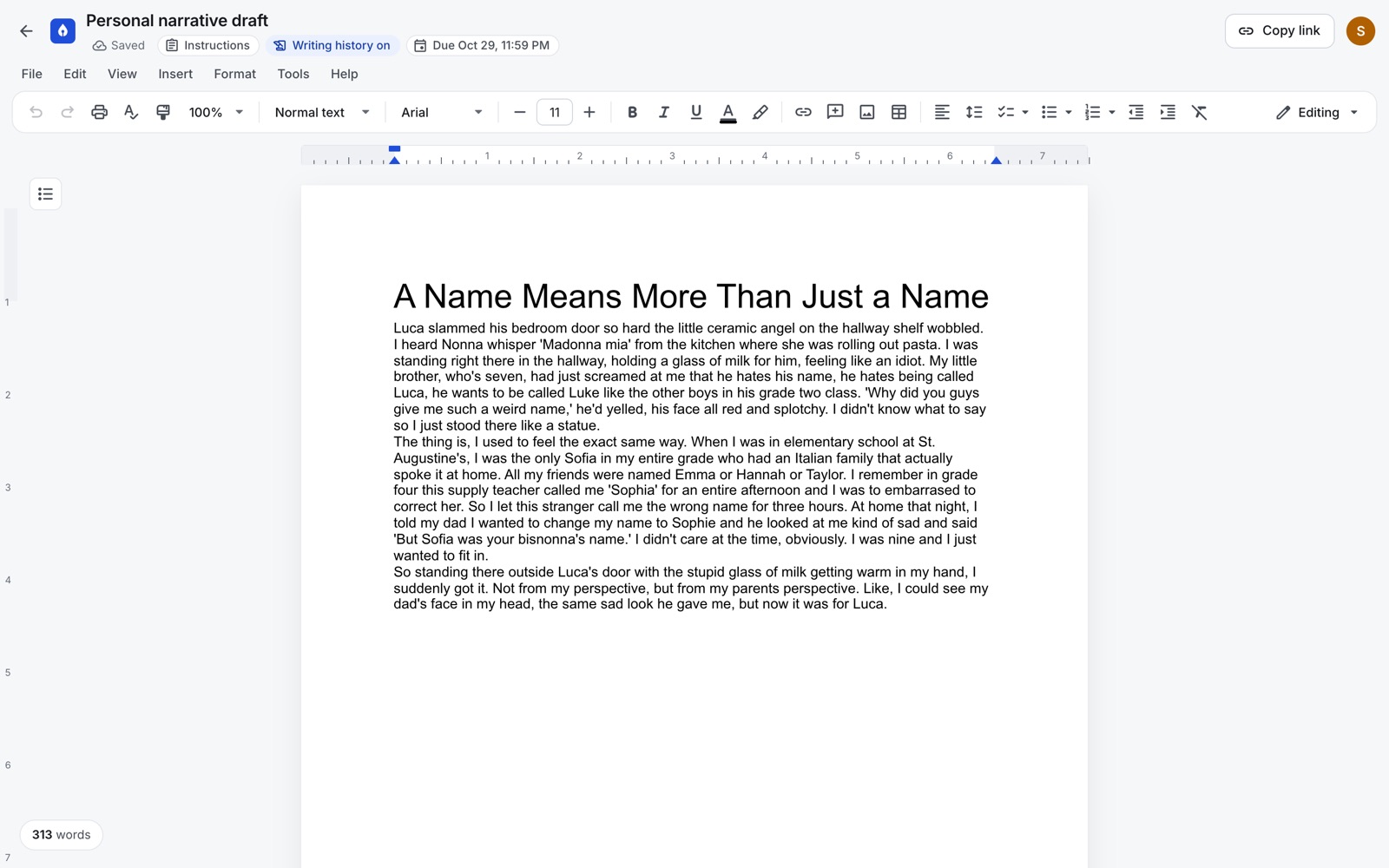
    The editor works like the word processors students already know, with formatting, comments, tables and images. "Writing history on" is always visible at the top of the page.

    Every change is saved as they type, with its time. Writeroom records only in school assignments, never in a student's own documents.

    The student editor: a personal narrative being written, with a Writing history on label next to the title.
  4. Step 4: Writeroom points out what is worth a look

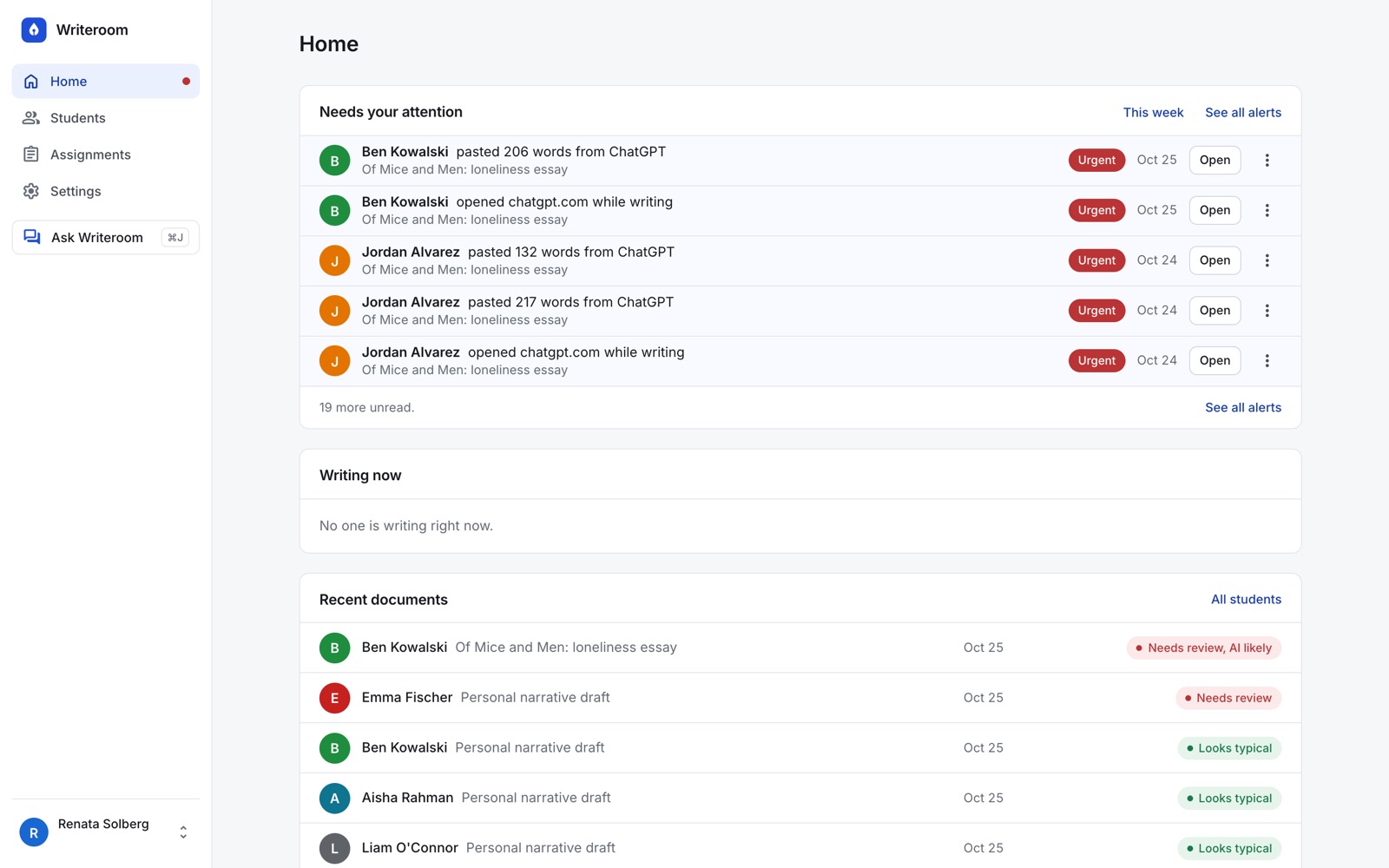
    Your home page answers one question first: is anything wrong right now? Text pasted from an AI tool, or an AI site opened while writing, shows up under "Needs your attention", newest first.

    Everything else stays quiet until you open it.

    The teacher home page: a Needs your attention list of recent alerts, such as a student pasting words from ChatGPT, and a list of recent documents with their status.
  5. Step 5: One sentence tells the story

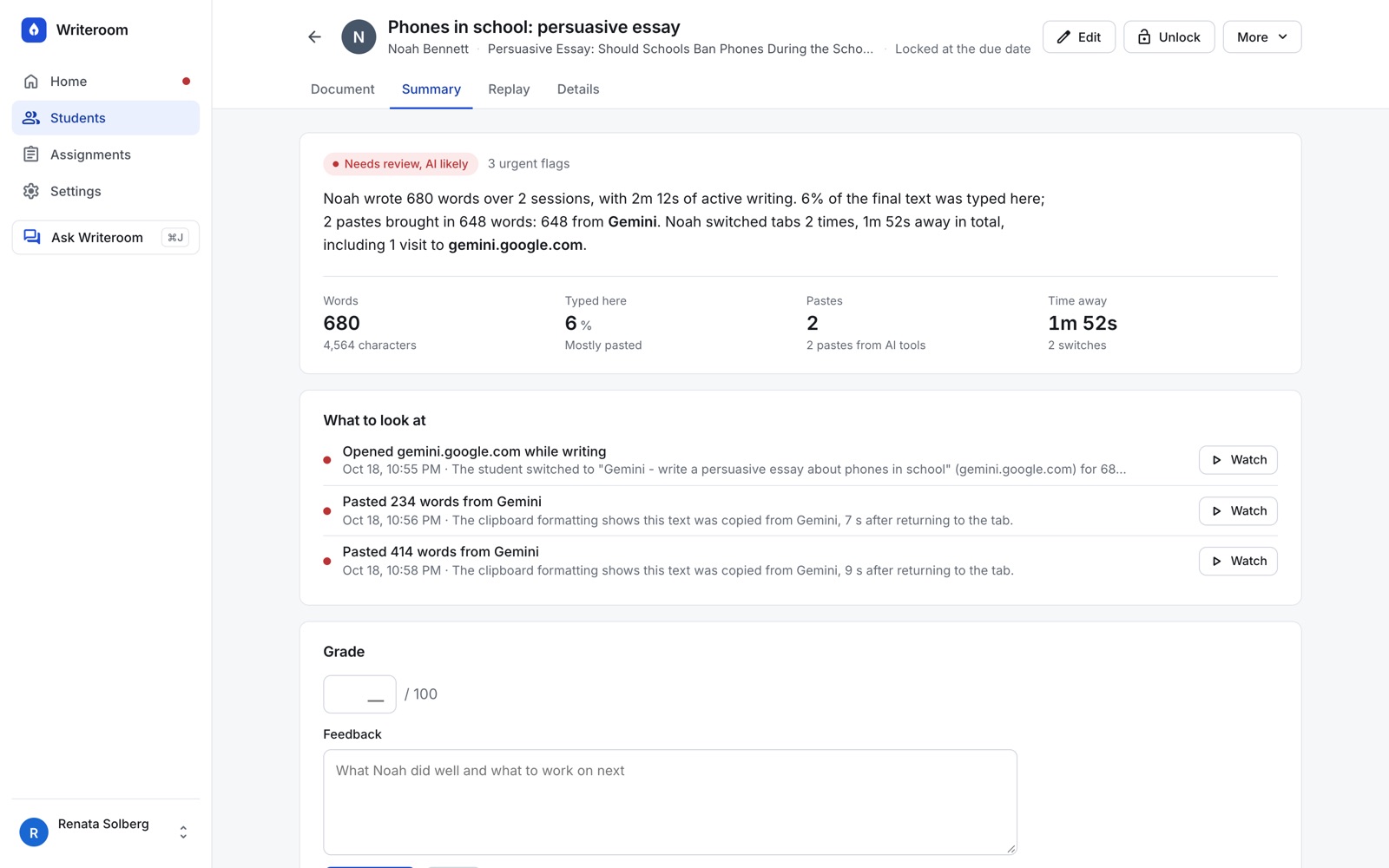
    Open a document and the summary says what happened in plain words: how long the student wrote, how much was typed here, what was pasted and from where, and how long they were away.

    At most three moments are listed under "What to look at", each with a Watch button that opens the replay at that point.

    A document summary: Needs review, AI likely, then one sentence about how the essay was written, four numbers, and three moments to look at.
  6. Step 6: Watch it being written

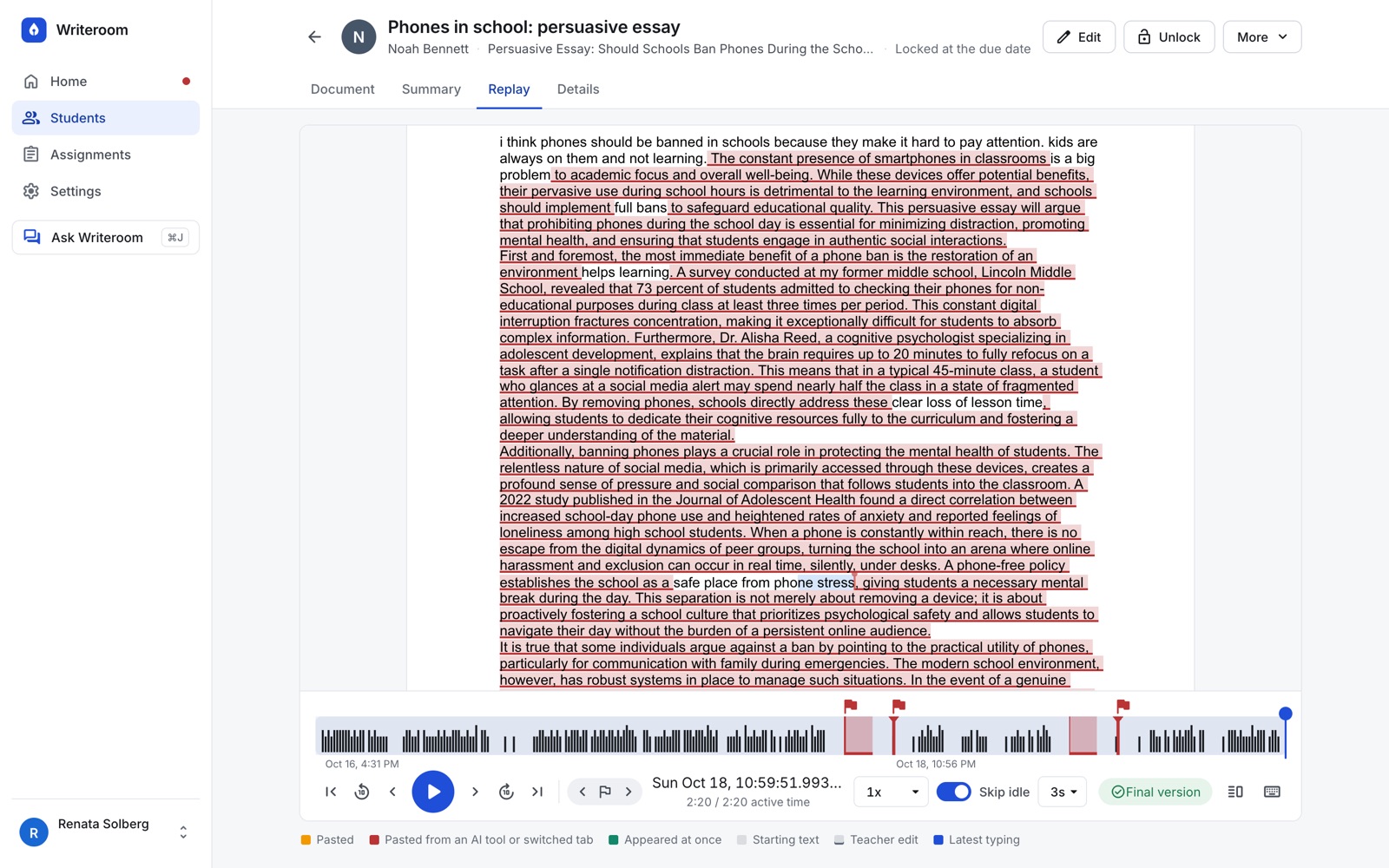
    Replay the whole document from the first word to the last, at any speed from half speed to a thousand times faster. Pasted text is marked on the page and on the timeline, and you can step from one flagged moment to the next.

    The replay at its end: pasted passages highlighted on the page, and flags on the timeline where text was pasted.
  7. Step 7: See your whole class at a glance

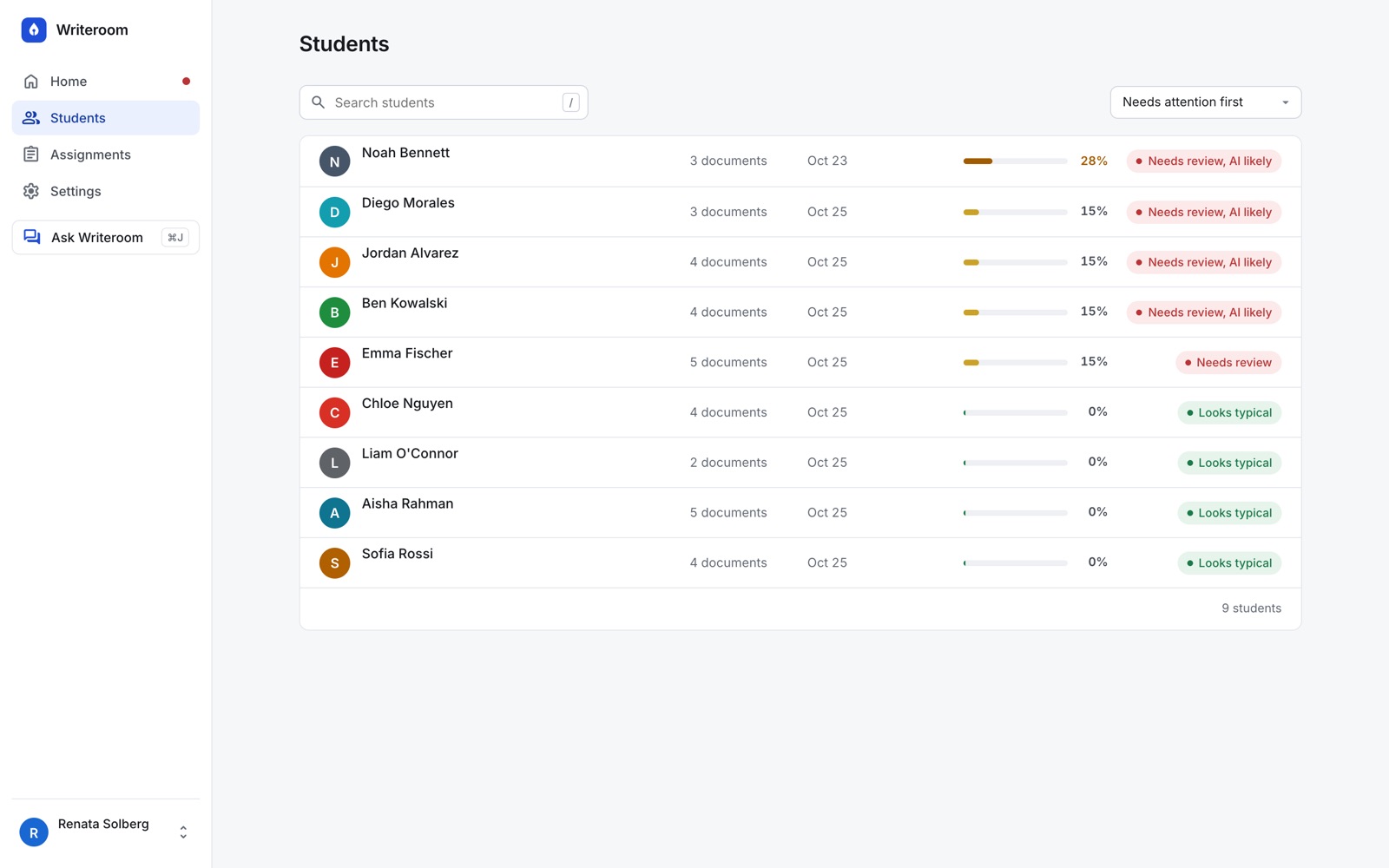
    The student list is sorted so the students who need a look come first, with one status each. Open a student to see every document they wrote and what stood out in each.

    The student list: nine demo students, sorted with those who need review first.
  8. Step 8: You decide

    Every flag, score and summary is a reason to look and to talk with the student, not proof. Writeroom never accuses a student, never grades on its own, and never makes a decision a teacher should make.

    Before relying on any signal, read How to read Writeroom's signals: what each one means, its limits, and how to talk with a student about it.

Screens from Writeroom with demo data. Students and teachers are invented, and their email addresses are hidden.

Bring Writeroom to your school.

Writeroom is available to schools and school boards through an agreement with us.